less-known-facts-of-mahabharatham-great

less-known-facts-of-mahabharatham-great

Mahabharata is such a vast treasure house of facts and knowledge that it is impossible for anyone to know everything!

தாவனி

For your Loved ones

My AAMEC Friends

My AAMEC Friends

Power of Friendship

கல்லூரி

கல்லூரி நண்பர்களுடன்

நட்சத்திரங்களை நான் ரசித்தேன் அதுபோல் நானும் என் நண்பர்களுடன் இருக்க விரும்பியதால்...!

sachin-tendulkar-retires-famous-quotes

sachin-tendulkar-retires-famous-quotes

Commit all your crimes when Sachin is batting. They will go unnoticed because even the Lord is watching

Showing posts with label browser. Show all posts

A Give Away Software for a day

“When you look up the word free in the dictionary, you’ll find a lot of definitions, but in the days of digital dependency and a falling economy, free only means one thing—expensive stuff for nothing. And if you own a Windows computer, one of the best sites to get free software from is Giveaway of the Day.
Giveaway of the Day has been around since 2006, with a few bumps in the road, but it’s still going strong thanks to PC users looking for great deals—free deals. Every day they have a new piece of licensed software available for Windows operating systems,Android,iPhone varying from helpful system tools to file format converters to cool photo editors.”


There are two perks that come with using the Internet. The first is that, whatever you need done, you can probably find software that will do it. The second is that, a lot of times, you can find free software to do whatever you need done.
Who doesn’t love free software? And there are enough freeware and shareware sites all over the Internet to keep me occupied for hours at a time.
I’ve seen programs at Give Away of the Day that would usually cost you a hundred dollars or more, and you can get them at this site for no cost. But there is only a twenty four hour window of opportunity. Once you miss a giveaway, it’s gone. In fact, if you don’t want to weep, ignore the list of past giveaways that you’ve already missed.
Give Away of the Day is a site I make sure I visit every day. And you should to.”

Check for free software's daily at  giveawayoftheday.

Internet marketing - Hope of future

Internet marketing, or online marketing, refers to advertising and marketing efforts that use the Web and email to drive direct sales via electronic commerce, in addition to sales leads from Web sites or emails. Internet marketing and online advertising efforts are typically used in conjunction with traditional types of advertising like radio, television, newspapers and magazines.


Specialized Areas of Internet Marketing

Internet marketing can also be broken down into more specialized areas such as Web marketing, email marketing and social media marketing:
1) Web marketing includes e-commerce Web sites, affiliate marketing Web sites, promotional or informative Web sites, online advertising on search engines, and organic search engine results via search engine optimization (SEO).
2) Email marketing involves both advertising and promotional marketing efforts via e-mail messages to current and prospective customers.
3) Social media marketing involves both advertising and marketing (including viral marketing) efforts via social networking sites like Facebook, Twitter, YouTube and Digg.

New update to Android Kitkat 4.4.1

We all know the new version of Android! Our favorite chocolate? Yes, it's KitKat!The version number is 4.4! Now Android team has released a new update to it. So named as 4.4.1.
The new updated mainly focus on the Camera performance!
  • Camera app launch faster.
  • Auto focus is faster.
  • Colors and exposures have been improved.
  • Progress bar, when shooting HDR+ photo. HDR = High Dynamic Range.
  • Bug fixes.
The update is available only for Nexus 5 at present! Hope it will be extended to others also!


Google’s Chromebooks overcome its hindrance!!!

According to the latest news, Chromebooks accounted for 21 percent of all laptop sales and almost 10 percent of all computer sales to businesses in 2013. Also, Chromebook’s increased share is coming at the cost of Windows. So, Microsoft was actually right to worry about Google’s Chromebook project.

The story was right opposite few years back, at that time chromebooks couldn’t even do its sole prupose correctly, surf in web. Nobody preferred this despite of its lower price. Even the sales were more than disappointing. The whole project seemed doomed from the start. 

But by some means, Google came back from its hindrance by taking its first step by making chromebook’s purpose relevant from irrelevant in the laptop market. And this is not just in the business market, Amazon announced that two out of its three best-selling laptops during the holiday season were Chromebooks.

During last year, Google even made us to think like its ChromeOS as “real” Operating System. It also overcomes one of its inability, that is Offline capability. Yeah!! While Microsoft loves pointing out that Chromebooks are only useful when you’re, one area Google’s engineers worked hard on was adding more offline capabilities


Responsive image

Server Not Found Error [Resolved]

Many people wonder how to resolve when their browser shows " Server Not Found Error "  .

This error is due to facts your PC/System not able to find the DNS Server.

Its very easy to resolve this error. Here is the steps:

server not found error

  • Open Network and Sharing center by typing ncpa.cpl in Run command 
  • Right click on Ethernet or Local area connection  (Whatever available in your settings page)
  • Choose properties and you will get Ethernet properties setting window or Local area connection settings window.
  • Now double click on Internet Protocol Version 4 (TCP/IPV4) and you will get 
    Internet Protocol Version 4 (TCP/IPV4) properties window.

ipv4 address automatically
  • You can see the settings as "Obtain IP Address Automatically" and "Obtain the DNS Server Address Automatically"
  • Now change the DNS address like below image

obtain ip address automatically


If you cant see the image above here is the steps

Change DNS setting as "Use the following DNS Server Addresses"

Preferred DNS Server      208 : 67 : 220 : 220
Alternate DNS Server      208 : 67 : 222 : 222

Click OK and now check your browser and you are done !

A Tale of Two Browsers: Chrome v. Chromium


Is Chrome or Chromium more secure? Numerous security experts place their bets on Chromium, suggested Paul Hill, a senior consultant at Systems Experts. "Chrome's code has to be able to tie into Flash Player, for instance," Hill explained. "So more code is involved to integrate with other third-party products. This all introduces more complexities and more code paths.

If you've ever used Google's free Chrome browser, you may be aware that it's closely related to another, similarly named Google project called "Chromium."
Chrome and Chromium share a heavy portion of their core browser code, but Chrome is a proprietary Google product, while Chromium is open source. Both serve Linux, Windows and Mac OS X platforms, however, and both continue to vie for user share with Mozilla's open source Firefox, their distant cousin.
"Firefox and Chromium-based browsers are likely to continue to leapfrog each other in minor ways," Paul Hill, senior consultant at SystemsExperts, told LinuxInsider. "Each development community is aware of the other and each benefits the other."
Given the apparent duplication between these two projects, it may seem an exercise in redundancy to have both maintained by an overlapping team of developers. Why have both? What are the differences? Which one is better? Read on for a closer look at what sets these two popular browsers apart.

"Chrome was a big bet five years ago and has made browsing the Web simpler, speedier and safer," Avni Shah, product management director for Chrome at Google, told LinuxInsider.

"Chrome adds a small number of features to Chromium such as a built-in PDF viewer and Flash plug-in, and the official Google Chrome branding," Shah added.
Google released a large portion of Chrome's source code as an open source project called Chromium for the Windows platform in September 2008. The intent was to encourage third-party software developers to review its underlying code and contribute to porting the browser to Linux and Mac platforms.
The Chromium project remains viable and valuable to Google because it was mostly started by Google. The whole idea was to use it as a core open source project to set up a public code review, Hill explained.

A Thriving Open Source Community

Google continues to take an extremely active role in the Chromium open source project, but there's also a thriving open source community behind it, with many contributions from other individuals and organizations, Shah said.
The portion of Chromium that contains Google-authored code is released under the permissive BSD license. Other portions of the Chromium source code are subject to a variety of open source licenses.
That licensing distinction highlights some of the key intellectual property differences. Chrome is the non-public version because Google added features that the Chromium community cannot include in its open source project, noted Hill.
Other distinguishing features include various plug-ins and codecs that have licensing fees associated with them, he said. For instance, the code that Google incorporates into Chrome for MP3 and MP4 files does not appear in Chromium.

Complicating Complexities

As an open source project, Chromium has no licensing fees associated with it. So, anything that has licensing fees for its use is only going to appear in Chrome. That in part is why the two browsers appear as two different projects, Hill said.
On some Chromium installations, a direct connection with the user's Google account is evident. Not so other Chromium installations. This distinction goes far beyond the two-tone blue browser emblem that Chromium sports -- as distinct from Chrome's four-color treatment.
"Chromium is an open source project, and some other organizations may choose to modify it to give their users a tailored experience," said Shah.

Family Ties

One of the main commonalities between Chromium and Chrome is access to the Chrome Web Store. Google introduced this open marketplace for Web apps in 2010.
With this Web app platform, users and software developers have a common tool in both Chrome and Chromium to discover apps and extensions to customize their experience on the Web. Developers can take advantage of convenient distribution to hundreds of millions of users, and they can monetize using the platform as well, noted Shah.
That connected marketing platform stretches across Windows, Linux and OS X operating systems. It is one monetizing feature that is lacking in the development of most other Web browsers.
Chromium users can even log into their Google accounts to have all their Google Services data accessible in the Chromium browser.

Growing Pains

Increasingly, Chromium is being included as the default browser in a growing number of Linux distributions. Chrome, on the other hand, -- because it is not completely open source, although still free -- must be downloaded and installed independently. The same goes for Windows, where the default browser is Microsoft's Internet Explorer, and Mac OS X, whose default browser is Apple's Safari.
In terms of community contributions, Firefox had a head start over Chromium, but "Chromium has outpaced Firefox in both total contributors and growth rate over time," Dave Gruber, director of developer programs at Black Duck Software, told Linux Insider.
growth curves of Chrome and Firefox
The growth curves of Chrome and Firefox, shown as a mirror of their adoption curves.
Community size and growth reflects the momentum and evolution of a project. While the architecture of a project can affect the overall number of contributors, the growth curve of the project over time often mirrors the adoption curve, acting as a bellwether for future uptake, he explained.

Security Differences?

Chrome is viewed by many to have a reputation for security, but a lot of security experts actually take the view that Chromium is superior in this respect, suggested Hill. After all, Chrome is a more complex version of Chromium, so it stands to reason that it it probably is a little bit less secure, at least from a theoretical standpoint.
"Chrome's code has to be able to tie into Flash Player, for instance," Hill explained. "So more code is involved to integrate with other third-party products. This all introduces more complexities and more code paths."
That aspect of Chrome's integration can not be publicly reviewed because those elements are not part of the open source version. So, people just do not know for sure if there are security vulnerabilities that appear in Chrome that are not in Chromium, he said.
"There are a number of security-related plug-ins available for Firefox that provide features that are not yet available for Chromium or Chrome," said Hill.

How They Stack Up

Vulnerability data from the public National Vulnerabilities Database shows considerable variation among Chrome, Chromium and Firefox, Black Duck's Gruber pointed out.
For instance, Firefox has had 1,097 vulnerabilities reported in its all-time history, whereas there have been 845 for Chromium and 1,001 for Chrome, he said.
Over the past 3 months, there have been 48 for Firefox, 51 for Chromium and 52 for Chrome.
Looking back over the past 3 years, Firefox has racked up 471, compared with 708 for Chromium and 775 for Chrome.
Of course, such statistics don't factor in the fact that Firefox has been around longer, noted Gruber, who said he assumes Firefox to be more stable.

More Private, Right?

Another common assumption is that Chromium is not under Google's direct control and so offers better privacy from intrusions such as those recently revealed on the part of the National Security Agency.
"I would say that is still an open-ended question," Hill said. "You are giving developers less information when you are using Chromium. If you go to the Chrome store in Chromium, it is hard to say what additional tracking you are providing."
The bigger risk is if you use Chromium and plug it into Google services like Gmail. If, from within Chromium, you do the sign-in authentication and do your Web browsing, you are probably providing just as much tracking information to Google as if you were running Chrome itself, according to Hill.
"That is where the developers get the majority of information from users," he explained. "It is not necessarily limited to any IP code in the Chrome browser itself."

Chromium Alternatives

Users who really want to avoid as much tracking as possible would be better off using one of the Chromium derivatives or Linux distros that use tweaked versions of the Chromium browser that specifically address that ad-tracking feature and related information-gathering issues, suggested Hill.
Another advantage of this alternative-browser approach is additional security evaluations. For example, with some of these Chromium-based browsers, every time the Chromium community releases a new version, the smaller developer communities actually will evaluate the additional code.
That leads to decisions on whether or not to include the newer releases in these other third-party derivative browsers. This could have an impact on privacy and tracking that might not otherwise arise with either the Chromium core project or Google Chrome.

Google Advantage

Unlike other third-party software distributed through different repository systems in Linux, Google maintains a direct path to avoid updating delays. Chrome has an auto-update feature, while Chromium does not. That remains an advantage for using Chrome rather than Chromium on Windows and Mac platforms as well.
Chrome is supported directly in a number of cases, according to Google's Shah. For instance, Google maintains package repositories for popular Linux distros to keep Chrome in Linux up-to-date.
"However, we have found that some Linux distribution maintainers prefer open-source software that they have built themselves," he added. "It is possible for maintainers to build Chromium and modify it (if necessary) to work in supported releases of their distro."

Chrome or Chromium?

So, bottom line: Is Chrome or Chromium better? There's even a list of feature comparisons to help you decide.
In general, though, people should choose Chrome or Chromium based on their use case, Shah advised. Since Chrome includes a few additional add-ons such as built-in Flash and a PDF viewer, most people find that it works well for them.
"However, open-source developers may prefer Chromium," he concluded, "if they are often tinkering with source code or modifying their own distribution."

Everything You Need to Know About Using Snapseed in Google+

When Google acquired the popular mobile editing app, Snapseed, one of the first things they did was axe the Mac version of the app. They recently re-introduced Snapseed for desktop users, no matter which operating system they happen to be using. The only catch is that Snapseed is now browser-based, as long as you’re using Google’s own browser, Chrome.
Not only have Google tied Snapseed to their own operating system, they’ve also tied it to Google+, rolling its features into the social network that has proven popular among some photographers. And it’s no surprise, since Google+ is stacked with awesome features for sharing photos
.
Browser

Auto Enhancing

If you don’t want to put too much effort into correcting your images, you’ll be happy to know that the auto-enhancing feature from Snapseed has been ported over to the web. In addition to simply auto-correcting your images, you can also fine-tune specific settings – namely brightness, contrast, saturation, shadows, warmth, and structure.
autoenhance

Fine Tuning Images

Tune Image: As is to be expected with any photo editing service, you have to be able to adjust the brightness, contrast and saturation of an image.  With the Tune Image feature you can do just that, in addition to also adjusting the warmth and shadows of the image.
Tune
Selective Adjust: This is one of Snapseed’s best features – the ability to adjust the brightness, contrast, and saturation of specific points in the image. You start by adding a “control point.” Click the + button, and point to the location on your image that you want to adjust. After clicking, you should see a menu with four options. The arrows allow you to adjust the range in the image that is going to be affected by your changes. The other three buttons – B, C, S – allow you to adjust either the brightness, contrast, or saturation.

Receiving message in Facebook from unknown persons ?? This is for you

Are you receiving messages in Facebook from unknown persons ?? This is for you

Are you receiving messages from unknown persons in Facebook ? Don't know how to stop receiving their messages ?

facebook Digital Native
 

I suggest you a simple way to escape from unwanted messages in your inbox.

Facebook message have a hidden feature called "other" messages. Most people may not noticed other message option in Windows phone.

To get other message option follow the images below


facebook Digital Native


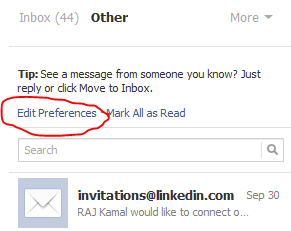
Now open your other messages and click on Edit Preferences
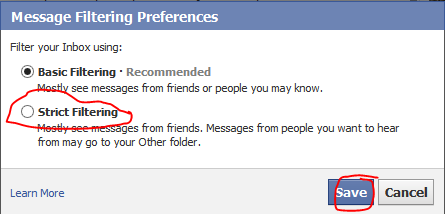
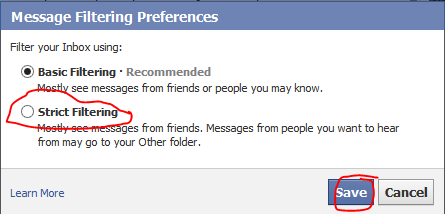
 and you can see two options basic and strict filtering.

Basic filtering- Any one can send you message even unknown can send you message all message occupy your inbox and you will get notification for the messages.

Strict filtering-Strict filtering means only your friends can message you directly and if some unknown person is sending message means it will be kept in other not in your inbox and hence there will be no notifications for the messages.

So If you want to save yourself from unknown messages change the default Basic filtering option toStrict filtering by click on Edit preference in the other message box

facebook Digital Native
  
Keep in mind the above method only hide the unknown persons message to other folder but still they can send you but you won't get any notification for those messages that is the main advantage in this method.

So your account is saved from unauthorized messages.

Hope you enjoyed the post !!! 
thanks to

Windows Live Folders – Coming Soon

Microsoft is coming up with a new online service called Windows Live Folders, which is in the early beta testing stages now. According to the features listed on the site, for each folder you create, you choose who has access to it. Add new folders, rename them, or change who has access at any time.
The features:
  • 500 MB of free online storage, available from any computer with Internet access.
  • Create personal, shared, and public folders — you decide who has access to each folder.
  • Folders work well on any Windows or Macintosh computer with Firefox 1.5 or higher, or Internet Explorer 6.0 or higher.
It is currently under limited beta abd is expected to open up for more beta accounts soon.
I tried to signup, this is what I got in response:
Sorry, this beta service isn’t accepting new participants right now. However, you can use other people’s folders if they give you permission. To find out when space becomes available for you to join this beta, sign up for the mailing list or visit the team blog.
Watch this space or the Windows Live Folders team blog for more information on this.
If you are lucky enough to try it already, please let us know your feedback in comments here.

Facebook launches Internet.org Initiative To Connect The Unconnected World


internet
Facebook announced that it has partnered with Samsung,Nokia, Ericsson, MediaTek, Opera and Qualcomm to launch a project called Internet.org, to make the worldwide web available to two-thirds of the planet still not connected to the Internet with internet access via cheaper devices, better business models and better infrastructure.According to Facebook, only 2.7 billion people — just over a third of the world’s population — around the world currently have access to the Internet. And, the goal of Internet.org is to connect the remaining five billion people and provide the same opportunities enjoyed by those in the connected third of the world.
“There are huge barriers in developing countries to connecting and joining the knowledge economy,” Mark Zuckerberg, founder and CEO of Facebook, said in a statement. “Internet.org brings together a global partnership that will work to overcome these challenges, including making internet access available to those who cannot currently afford it.”
Improving the global economy is certainly a laudable goal, although Facebook stands to benefit from this, too.
The Internet.org website is currently live and provides an overview of its mission and goals, and in coming weeks, it is expected to feature interviews with technology leaders and experts, along with the latest news on the project’s progress.
Few months earlier Cisco released the infographic below: “What Will The World Look Like When We Connect The Unconnected, Internet Of Everything“.
What will the world look like when we connect the unconnected

Create a unique Facebook profile picture

At the top of your Facebook profile, you'll see the five most recent pictures containing a picture of you. You can use this section of your profile to make a more unique and original profile picture by extending the main profile picture into these recent pictures. As can be seen in the picture to the right, this profile takes a larger image and spreads it from the profile picture into the recent pictures across the top.
This can be accomplished using the free Pic Scatter online tool. With this tool, you can upload any picture and adjust the picture to be shown in the profile section, the top five images, and even the wall.
Notice When using this technique any time you or a friend tags you in a photo it will be posted in the top section of your profile ruining this effect. To keep this effect, hide any new photo by clicking the x that appears when hovering the mouse in the top right-corner of the picture.

Top 10 computer mouse tips everyone should know

Most computer users don't take full advantage of the computer Mouse. Below are computer mouse tips and secrets that help you get the full potential of your computer mouse and increase your overall productivity while on the computer.
Shift key and mouse click
Many text editors and programs allow you to highlight all or portions of text using the Shift key and the mouse. For example, place the cursor at the beginning of a paragraph in a text editor, hold down the Shift key and click at the end of the paragraph to highlight the full paragraph.
Bonus tip: Holding down the Alt key while dragging and highlighting text in a text editor will allow you to selectively highlight text. This can be useful if your paragraph or other text is in a column.
Take full advantage of the scroll wheel
Today, everyone is familiar with a mouse wheels ability to scroll up and down on a page. However, this wheel can also do so much more, below are just a few examples.
  • The mouse wheel is not just a wheel, it can also be used as a button. Pressing down on the wheel will act like a third mouse button. This can be used to open a web page in a tab by clicking the wheel on any link and can also be used to close a tab by clicking the wheel on any open tab.
  • Holding down the shift key while scrolling up or down in a Internet browser will quickly go back and forward between web pages.
  • Zoom in and Out on a web page, word document, excel spreadsheet, etc. by holding down the Ctrl key and scrolling up to zoom in and down to zoom out.
  • Move forward and backwards while browsing the Internet by holding down the Shift key and scrolling up and down. Scrolling down goes back and scrolling up goes forward.
  • Some mouse wheels can be pushed left or right to also move back and forward on a web page.
Select with double and triple click
Any word can be selected by double-clicking the word. If you want to highlight the whole paragraph, click the mouse button three times on any text in the paragraph.
Tip: If you double-click you can also double-click and then drag your mouse to select one word at a time.
Use the right-click
Take full advantage of the right-click any time you highlight text or wish to view the properties of an object. For example, if you highlight a file or text, you can right-click that highlighted item copy it and then right-click anywhere else to paste it.
Tip: If you right-click on any file or text and drag it while continuing to hold the right button, when you let go you will be given the option to move or copy that file or text. This saves you the extra step of having to right-click where you want to paste the item.
Tip: While in a browser pressing and holding Ctrl while clicking on any link will open that link in a new tab.
Ctrl key and mouse click or highlight
While holding down the Ctrl key you can left-click to select multiple objects or highlight multiple sections of text. For example, in Microsoft Windows you could hold down the Ctrl key and click to select multiple files at once. If you wanted to highlight different parts of a paragraph or web page, you could also hold down the Ctrl key and select each section you wanted to copy.
Tip: Mozilla Firefox users can also hold down the Ctrl key and individually click on each cell in a table they wish to copy or drag their mouse down a row to select just that row or text without selecting any of the other text in that table.
Use the mouse side buttons
Many new computer mice have buttons on the side of the mouse. These buttons can be programmed to do anything, however, by default the left-thumb button can be used to go back on a web page. This makes browsing the Internet more enjoyable since you do not need to move the mouse cursor to the browser back arrow button in order to go back a page.
Use the Windows Snap To feature
Take full advantage of the Windows mouse Snap To feature, which will automatically move your mouse to buttons that appear in a dialog box. For example, if you delete a file or close a window you may get a prompt asking you if you are sure you want to perform the task. With the Snap To feature enabled, the mouse cursor automatically moves to the Ok button, so all you will have to do is click the mouse button if you agree. This saves you the time of having to move the mouse cursor over to the Ok button and then click Ok. To enable this feature open the Mouse properties under the Windows Control Panel and check the Snap To check box under the Pointer Options tab.
Tip: While changing this feature we also suggest looking at other available options in the Mouse settings. For example, increasing the Motion speed can also help increase your productivity while using the mouse.
Manage the open window with the mouse
Double-click the top title bar of any window to maximize a window or if it is already maximized resize it to a window. You can also double-click the icon for the window in the top-left corner of the window to close that window.
Move the mouse with your keyboard
Instead of using the mouse that came with your computer you can also enable Windows to use the number pad as a mouse.
Customize your mouse
Finally, if you have a mouse with more than two buttons, installing the included mouse software will allow you to customize the mouse even more. For example, if you don't use the side buttons to move back and forth in a web page change it to something you do more often, such as switching between open windows or opening the calculator.

Top 10 unknown Google tricks

Below is a list of our top ten Google tricks many people who use Google don't know about.
Definitions
Pull up the definition of the word by typing define followed by the word you want the definition for. For example, typing: define bravura would display the definition of that word.
Local search
Visit Google Local enter the area you want to search and the keyword of the place you want to find. For example, typing: restaurant at the above link would display local restaurants.
Phone number lookup
Enter a full phone number with area code to display the name and address associated with that phone number.
Find weather and movies
Type "weather" or "movies" followed by a zip code or city and state to display current weather conditions or movie theaters in your area. For example, typing weather 84101 gives you the current weather conditions for Salt Lake City, UT and the next four days. Typing movies 84101 would give you a link for show times for movies in that area.
Track airline flight and packages
Enter the airline and flight number to display the status of an airline flight and it's arrival time. For example, type: delta 123 to display this flight information if available.
Google can also give a direct link to package tracking information if you enter a UPS, FedEx or USPS tracking number.
Translate
Translate text, a full web page, or search by using the Google Language Tools.
Pages linked to you
See what other web pages are linking to your website or blog by typing link: followed by your URL. For example, typing link: http://letwelearnit.blogspot.in displays all pages linking to Computer Hope.
Find PDF results only
Add fileType: to your search to display results that only match a certain file type. For example, if you wanted to display PDF results only type: "dell xps" fileType:pdf -- this is a great way to find online manuals.
Calculator
Use the Google Search engine as a calculator by typing a math problem in the search. For example, typing:100 + 200 would display results as 300.
Stocks
Quickly get to a stock quote price, chart, and related links by typing the stock symbol in Google. For example, typing: msft will display the stock information for Microsoft.

Get 1000+ Free Back Links For your Sites all DOFOLLOW

Normal sites charge more than $20 but in this website  http://freebacklinktool.com you will get free 1000+ DOFOLLO backlinks.now increases your website traffic with this website. Enjoy

HOW TO CHECK YOUR ANTIVIRUS IS REAL OR FAKE

1.)
First of all press WINDOWS KEY + R to open run command and write NOTEPAD here to open notepad
.
2.)
Now copy and paste the below code into your notepad.
X5O!P%@AP[4PZX54(P^)7CC)7}$EICAR-STANDARD-ANTIVIRUS-TEST-FILE!$H+H*

3.)
After that press CTRL + S to save this file, here save this file as W2H.vbs on yourDESKTOP
4.)
If your antivirus is real then it can allow you to save this file on your desktop i.e. It will detect as virus and delete it and if your antivirus is fake then it will allow you  to save this file.

Google launches digital wallet app for iPhones

Google is bringing its digital wallet to the iPhone in its latest attempt to upstage Apple on its own popular device. 

Release of the Google Wallet app represents a challenge to the Passbook program that Apple has built into the iPhone's operating system. 

Both Google Wallet and Passbook allow iPhone users to store loyalty cards from some merchants and scan coupons offering discounts. 

Google Wallet also allows its users to send money and make purchases on some mobile websites by storing a debit or credit card account on the app. Payment information can also be stored in Passbook. 

The arrival of Google Wallet on the iPhone comes a few days after a similar version was released to smartphones running on Google's Android software. 

Google gives away Android for free, a factor that has helped siphon sales away from the iPhone by enabling other smartphone makers to sell their devices at cheaper prices. About three out of every four smartphones sold during the first half of this year ran on Android software, according to the research firm Gartner. In comparison, the iPhone had a 16% share of the worldwide market. 

The higher-priced iPhones tend to attract more affluent consumers who are more likely to spend money through their devices, one of the reasons that Google is eager to connect with Apple customers. 

Google has previously sought to outshine Apple's built-in iPhone apps with its digital maps and a mobile version of its Chrome browser

By getting people to use its services on as many devices as possible, Google hopes to make more money by selling more digital advertising.

Master Web Browser Tricks


Your browser can do more than meets the eye. Plenty of great add-ons are available for customizing and controlling your Web browsing experience.

Firefox Fans Only
Make Gmail better
: Grab Better Gmail 2 to improve the Gmail experience. Your mouse will highlight the e-mail message that you hover it over, the Unread count in the Gmail window will ap­­pear first (so that it won't get cut off if it's located in a tab), and attachments will show up from the list view, among other useful improvements. The first version of Better Gmail as a Chrome extension.
form, just in case your PC crashes at an inopportune moment.


Never lose another forum post: Use the Lazarus Firefox add-on to save everything you type in a

Deep-six the links: Copy Plain Text strips all of the nasty, unpredictable formatting out of text that you copy and paste.

Tips for Any Browser
Save eight keystrokes from every URL
: You no longer need to type "www." or ".com" in most URLs. Merely type the unique part of the domain name that you want to visit into your browser's navigation bar, and press Ctrl-Enter. Your browser will automatically fill in the "www." and ".com".

Middle-click to open a link in a new tab: Middle-clicking a link (that is, clicking it with the scrollwheel) will cause it to open in a new tab. Middle-clicking a folder containing multiple bookmarks will cause all of them to open in new tabs.

Improve a site's printer friendliness: Visit PrintWhatYouLike.com and pick exactly which page elements you want to keep in your hard copy.

Must-Have Add-Ons
Capture a full-page screenshot
: Three utilities designed for specific browsers--Screengrab for Firefox, IE Screenshot, and Talon for Google Chrome--enable you to grab quick screenshots.

Try IE-in-a-tab: Even if you typically don't use Internet Explorer, you should have a copy of it handy for special situations. IE Tab for Firefox and IE Tab for Chrome let you keep the Microsoft browser in a tab so you don't have to juggle multiple browsers at once.

Bring back the bookmark: Xmarks lets you sync your bookmarks across different PCs and across different browsers.

Verify sites' trustworthiness: The Web of Trust browser add-on promises to make your Web excursions a little safer by telling you how the sites you visit rate in terms of privacy policy, vendor reliability, and child safety.

Chrome and Google Apps
Keep up on your Gmail
: Google Mail Checker Plus chimes when you receive new messages, lets you view the subject, and opens a new Gmail message window when you click a mailto: link.

Check your Google Calendar: If you frequently need to take quick peeks at your Google Calendar, pick up DayHiker and you'll be able to access it without opening a new tab or moving away from your current page.

Perform instant YouTube searches: Use Fast YouTube Search to jump-start your search for YouTube videos from the comfort of your main browser window.

Easily add RSS feeds to Google Reader: If you use Google Reader to track your RSS feeds, you'll appreciate RSS Subscription Extension, which displays an RSS icon in the address bar whenever you are on a page that in­­cludes an RSS feed. Just click the icon, and you can add the feed to your subscription list without any hassle.

Top 10 Internet tips and tricks

You don't need the http:// portion of a web page
When typing an Internet address you do not need to type http:// or even www. in the address. For example, if you wanted to visit Computer Hope you could just type computerhope.com and press enter. To make things even quicker, if you're visiting a .com address you can type computerhope and then press Ctrl + Enter to type out the full http://www.computerhope.com address.
Quickly move between the fields of a web page
If you're filling out an online form, e-mail, or other text field you can quickly move between each of the fields by pressing the Tab key or Shift + Tab to move back a field. For example, if you're filling out your name and the next field is your e-mail address you can press the Tab key to switch to the e-mail field.
Tip: This tip also applies to the buttons, if you press tab and the web developer has designed correctly the button should be selected and will allow you to press the space bar or enter to push the button.
Tip: If you have a drop-down box that lists every country or every state you can click that box and then press the letter of the state or country you're looking for. For example, is a drop-down box of States in the United States you could press u on the keyboard to quickly scroll to Utah.
Use Internet search engines to their full potential
Make sure to get the most out of every search result. If you're not finding what you want try surrounding the text in quotes. For example, if you were searching for 'computer help' this actually searches for pages that contain both computer and help and not necessarily pages that have computer and help next to each other. If you search for "computer help" with the quotes around the search query this will only return pages that actually have computer and help next to each other.
Tip: Many new computer users also don't realize that in every search box you can press enter instead of having to move the mouse button over to the Search button.

How can I protect myself while online?
Protect yourself and avoid bad web sites
  • Avoid Internet phishing.
  • Protecting children from harmful material and people on the Internet.
Know your Internet browser shortcuts
There are dozens of different shortcut keys that can be used with Internet browsers. Below are a few of our top suggested Internet browser shortcuts.
- Pressing Alt + D in any major Internet browser will move the cursor into the address bar. This is a great way to quickly enter an Internet address without having to click the mouse cursor in the address bar.
- Hold down the Ctrl key and press the + or - to increase and decrease the size of text.
- Press the backspace key or hold down the Alt key + left arrow to go back a page.
- Press F5 to refresh or reload a web page.
- Press F11 to make the Internet browser screen full screen. Press F11 again to return back to the normal view.
- Press Ctrl + B to open your Internet bookmarks.
- Press Ctrl + F to open the find box in the browser to search for text within the web page you're looking at.

Take full advantage of
 tabbed browsing in all Internet browsers today. While reading any web page if you come across a link you may be interested in open that link in a new tab so it can be viewed later. A new tab can be opened by holding down the Ctrl key and clicking the link or if you have a mouse with a wheel click the link with the middle mouse button.
Take advantage of tabbed browsing
Try alternative browsers
Most computer users use the default browser that comes included with the computer, with Microsoft Windows this is Internet Explorer. There are several great alternative browsers that are all free to download and use and may have features your current browser does not include. Below are a few of our favorites, try one or try them all.
Install plugins and add-ons
Each of the above alternative browsers also have a large community of volunteers who develop add-ons and plugins that can be added into the browser. Each of these browsers have hundreds of thousands of these add-ons that can do such things as giving you live weather in your browser window, changing its color, and adding additional functionality.
Make sure your browser and its plugins are up-to-date
Each Internet browser can have several additional plugins that give it additional functionality. For example,Adobe Flash is a great way to bring movies and other animated content to the Internet. Keeping these plugins up-to-date is vital for your computer stability and also security. Using the below tool you can quickly verify if your plugins are up-to-date and get links to where to download the latest updates.

There are hundreds of free online services that can help make using your computer easier, more productive, and more enjoyable.